Posts

Dynamic Symmetry Lesson: Angular Spiral Construction

Image
Spirals were very important to the Greeks as evidenced in their Ionic columns. The proportions were calculated carefully, resulting in classical beauty known for this period. The proportions used are at the heart of Dynamic Symmetry, using inner divisions that are proportional to the original rectangle. Diagonals and Reciprocals aid in the construction of spirals. We begin with angular spirals formed from line segments between a main diagonal and one of its reciprocals.  The well-known Golden Rectangle would lead to a “Golden” Angular Spiral described elsewhere. Note though that a 5 by 6 rectangle is chosen here as an example, since it has more turns than a "wider" rectangle/panel and in fact is closer to the Greek Ideal spiral for the Ionic Column. When constructing this 5 by 6 shape, realize that the instructions will hold for any rectangle. Following this set, we will list a few angular spirals constructed for popular panel proportions. Note in par...

Dynamic Symmetry MATHEMATICS APPENDIX

Image
    Dynamic Symmetry MATHEMATICS Appendix By Karen Halbert This appendix includes the more mathematical sections of the original appendix. For the original appendix select:  https://karenhalbert.blogspot.com/2025/05/condensed-dynamic-symmetry-appendix-by.html .   Summary Basic Dynamic Symmetry Panel Measurements Formulas for other panels: The formula for the Top Intercept: Baroque Diagonal Reciprocal is: width – (height * height)/width The formula for the Top Intercept: Sinister Diagonal Reciprocal is: (height*height)/width Check that these two intercepts add up to the width. Also note, for example that for the 6x8 panel the proportion of the implied vertical rectangle is 4.5 x 6 the same as 6 x 8. Note that the intercepts switch positions on the top edge for the last three (wider) panel sizes; ie, the Baroque Reciprocal is moved to the right of the Sinister Reciprocal intercept    Construction of Golden Rectangle Inside a Square   Draw a line fro...

Design Armature Examples applied to the Santa Fe River Turbulence, a Golden Rectangle Painting

Image
Santa Fe River Turbulence, with Dynamic Symmetry Armature, 10x16.  (golden ratio) Notes: (in progress: return again from time to time to see additions or modifications) 9/15/25: Edited a bit.  For example, the Wise Photo App Dynamic Symmetry Grid now works properly with a 2 to 3 proportion image (AR 1.5) since SLR cameras use this proportion. 5/15/23:    Added "Golden Rectangle" to the title to emphasize that this post is about the golden PHI proportion. Added an image with the Rule of Thirds superimposed over a PHI grid for the viewer to see the difference visually. Removed comment about other proportions since they are not represented in this post. Removed the Wise Photo App version of the Dynamic Symmetry grid applied to this golden proportioned painting since it distorted the size in its downloaded version.  In the App, it's best to use the PHI/Golden Triangle/Spiral 'grids' for golden rectangle proportions and the Dynamic Symmetry Grid for 3 to 4 or 2 to 3 ...

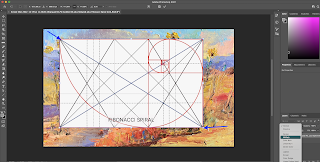
How To: Overlay a Grid on an Existing Image using Photoshop

Image
Introduction It's helpful to have your grids in a folder on your computer that is easily accessible. Construction 1.Select an existing painting to be overlaid with a grid and drag it to Photoshop (or open it with Photoshop). 2. Find the desired "PNG" grid for the overlay on your painting. (See other posts for instructions on the creation of this particular hand-made grid), 3. Drag it over your painting image in Photoshop.  Sometimes the painting image itself has a color profile that doesn't allow an overlay. In this case do a Screen shot of the painting jpeg image (see below for instructions) to convert it to a png without the color profile and start over. 4. Stretch the overlay to fit the painting by grabbing the corners and dragging to the image corners. But be careful not to change the proportions (don't hold the shift key for this procedure). 5. Convert it to transparent by changing the setting in the layer from "normal" to 'multiply'.  If th...